


If your organisation delivers courses, training or structured programmes across more than one location and works with a range of external partners, colleges, employers or community hubs, you'll know the administrative friction that comes with it.
Different sites run different programmes. Different departments follow different rules. Some cohorts are restricted to certain venues, certain partners only deliver certain subjects, and every time someone sets up a new project, there's a risk that somebody picks the wrong combination from a dropdown and quietly creates a reporting headache that won't surface until your next board meeting.
Makerble is built for this. Not just in theory, but with specific features designed to mirror the taxonomy your organisation already uses internally, and to enforce the rules that keep your data meaningful.
Your taxonomy, your way
When you create a project on Makerble, you can attach a project form — a set of fields that describe the project. Those fields can include dropdowns for whatever dimensions matter to your organisation: Location, Department, Programme, Subject, Cohort, Funding Stream, Partner, or any combination thereof.
That's powerful on its own. But what makes it genuinely useful for complex, multi-site organisations is the ability to link those dropdowns together using Parent Lists.
Restricting dropdown options based on earlier choices
Say your organisation runs three flagship programmes: Pathways to Employment, Digital Skills for Work, and Financial Capability. Not every programme runs at every site. Digital Skills for Work is only delivered at your Johannesburg and Cape Town offices. Financial Capability is only available through your community partner network, not your residential sites.
Without any constraint in your system, someone creating a project could select "Residential - Durban" and then "Financial Capability" - a combination that simply doesn't exist. Errors like this are invisible until they corrupt a report or mislead a funder.
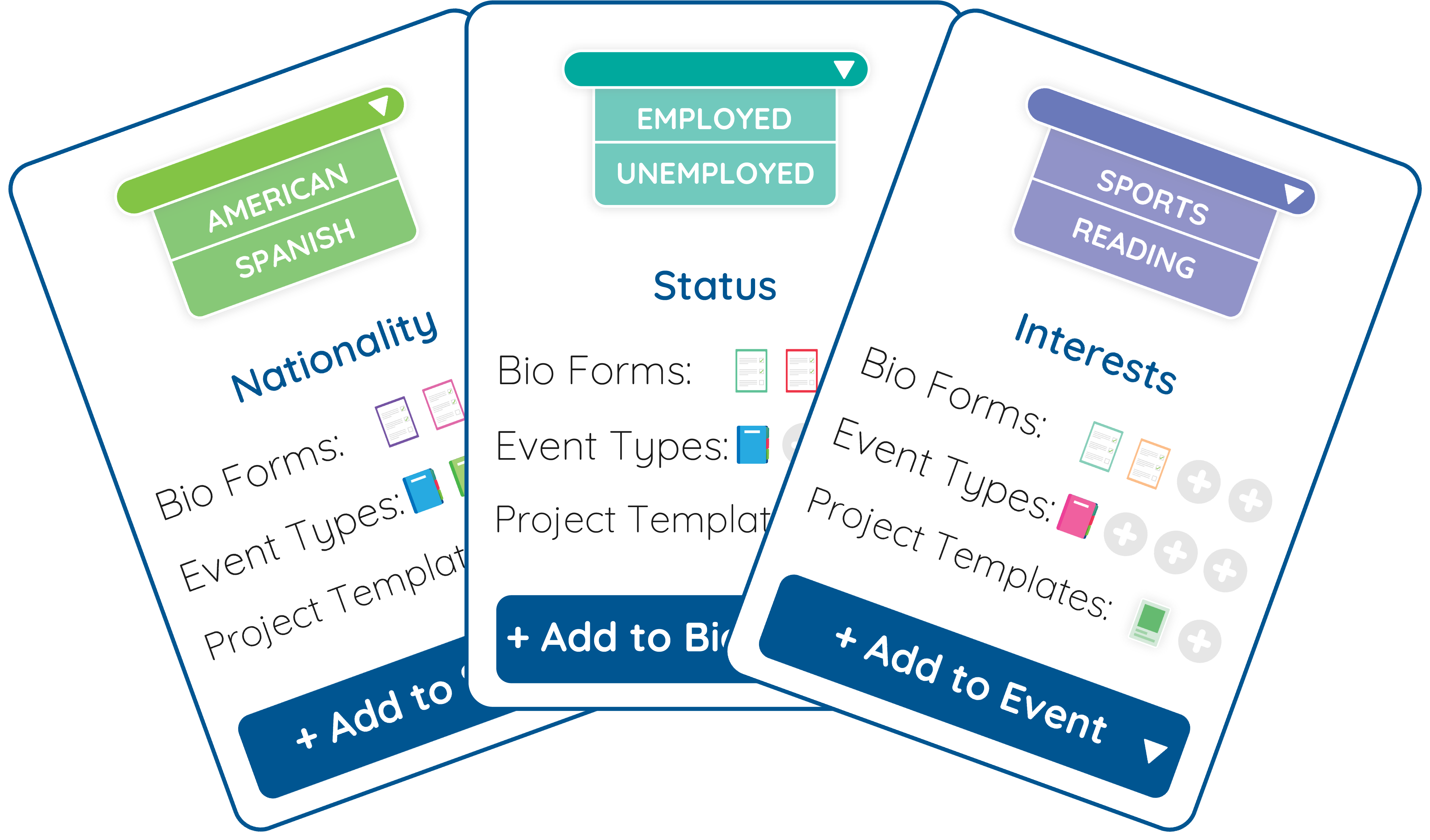
With Makerble's Parent List feature, you set the rule once. After that, when someone selects a Location, the Programme dropdown automatically filters to show only the programmes that run there. Irrelevant options disappear. The right combination is the only available combination.
This works for as many levels as your taxonomy requires. You can connect dropdowns so that selecting a Programme filters the available Subject options, which in turn filters the available Cohort options. The logic reflects how your organisation actually works, not a simplified approximation of it.
→ Learn how to set up Parent Lists in Makerble
Quality assurance as you scale
Once a project is correctly categorised, Makerble can take the next step for you.
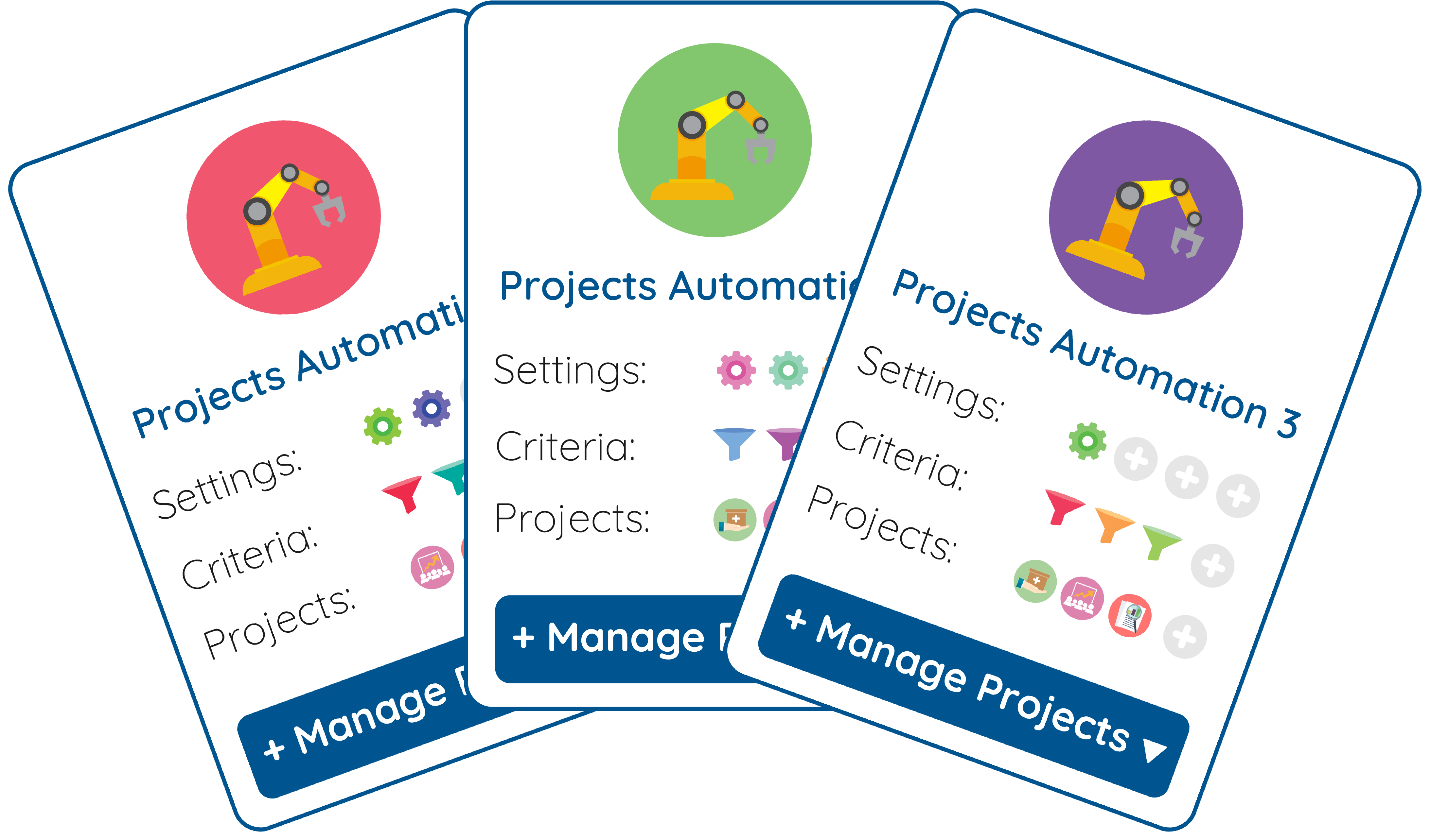
Project Automations allow you to define rules that trigger automatic setup actions whenever a project is created that matches specific criteria. So if a project is tagged as a Digital Skills for Work programme at a partner site, Makerble can automatically:
- Attach the correct set of intake and enrolment surveys
- Apply the right project preferences and settings
- Set up the standard event types used for that programme type
- Copy across the contact automations relevant to that cohort
The person creating the project doesn't need to know any of this. They fill in the form, and Makerble configures the project correctly behind the scenes.
For a Head of Programmes overseeing 30, 50 or 100 active projects across multiple sites, this means no more onboarding new coordinators project by project and hoping they remember the checklist. The checklist runs itself.
→ Learn how to set up Project Automations in Makerble
Why this matters for large, diverse nonprofits
The question we hear often from organisations with varied workstreams is: "Is Makerble flexible enough for us, or will we have to simplify how we work to fit the system?"
The honest answer is that Makerble is designed to conform to your organisational structure, not the other way around.
If you have a complex geography with multiple partner types, a mix of directly-delivered and sub-contracted programmes and a taxonomy that your team has developed over years of operational experience, Makerble can mirror that. The Parent List feature means your dropdown logic is enforced at source. The Project Automation feature means your operational rules are encoded once and applied consistently, every time.
For a Head of IT, this matters because it reduces the risk of bad data without requiring constant manual intervention. For a Head of Programmes, it matters because it means the platform reflects how the work is actually structured, and reporting comes out clean.
Getting started
If you're setting up Makerble for a multi-site, multi-programme organisation, the recommended sequence is:
- Define your taxonomy. What are the dimensions that describe a project? Location, Department, Programme, Subject, Partner, etc - list them out, along with the valid combinations.
- Build your dropdown lists. Create a dropdown for each dimension in Makerble's Designer settings.
- Set up your Parent Lists. For each child dropdown, define which parent dropdown governs it, and map which parent options reveal which child options.
- Create your Project Forms. Attach the dropdowns to a project form so that the full categorisation is captured at the point of project creation.
- Configure your Project Automations. Use Saved Filters to identify which types of projects should receive which automatic settings, surveys and event types.
Done well, this setup means that every project created on your platform is correctly categorised, consistently configured, and ready to generate reliable data from day one.
If you'd like to talk through how this might work for your organisation's specific structure, get in touch with our team.










.png)

%208.png)


.png)


